Your CBandC Web Design Client Portal, contains a ticketing system for all support, known as “Requests”.
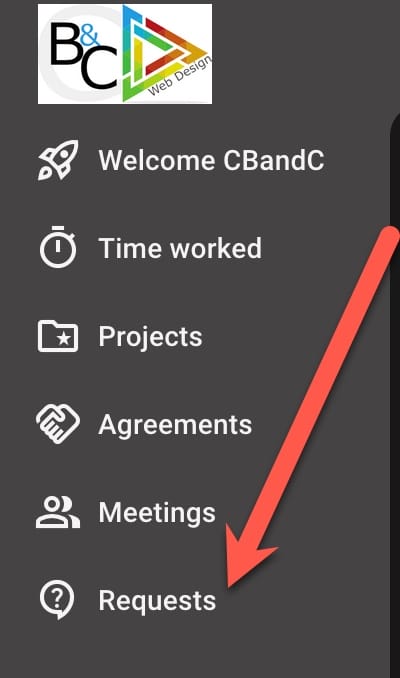
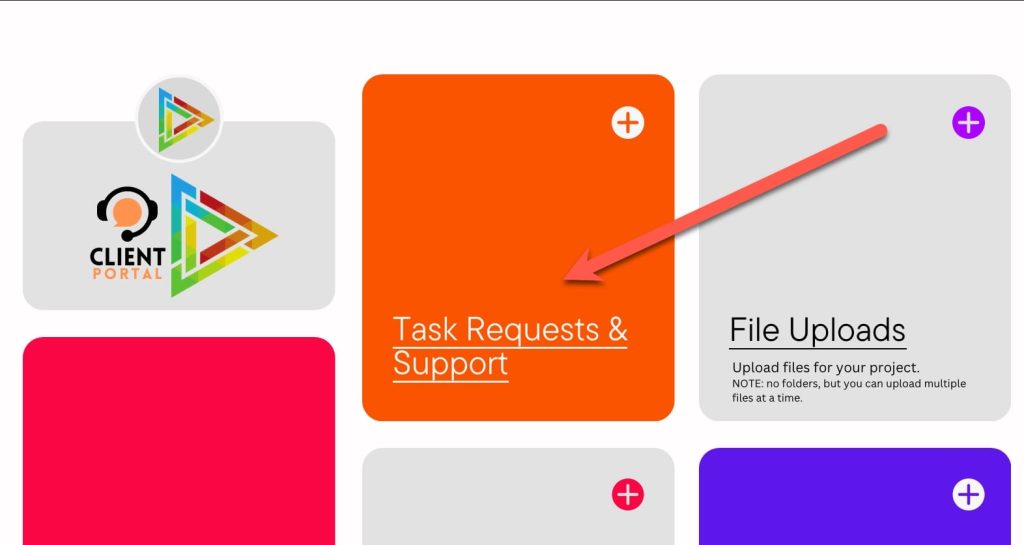
It is accessed via either the “Requests” menu item on the left hand side of your portal or the “Task Requests & Support” card on the main “Welcome” screen.
PLEASE NOTE: “Requests” will become the only acceptable contact method for work required on your project, tasks associated with your Care Plan or lodging of faults with your website. Other contact methods such as email, text, Whatsapp, etc., will no longer be accepted after a grace period (1 month after you have been granted access to your Client Portal), as they cannot be tracked as part of my workflow. Requests for support made via other means will receive a reminder to use the system detailed below – your request will not be actioned unless via this method.
Requests Link #
Requests Card #
Create a New Request #
To create a new Request: #
1. Click the “Requests” menu item or “Task Requests & Support” card. You will see the following screen:
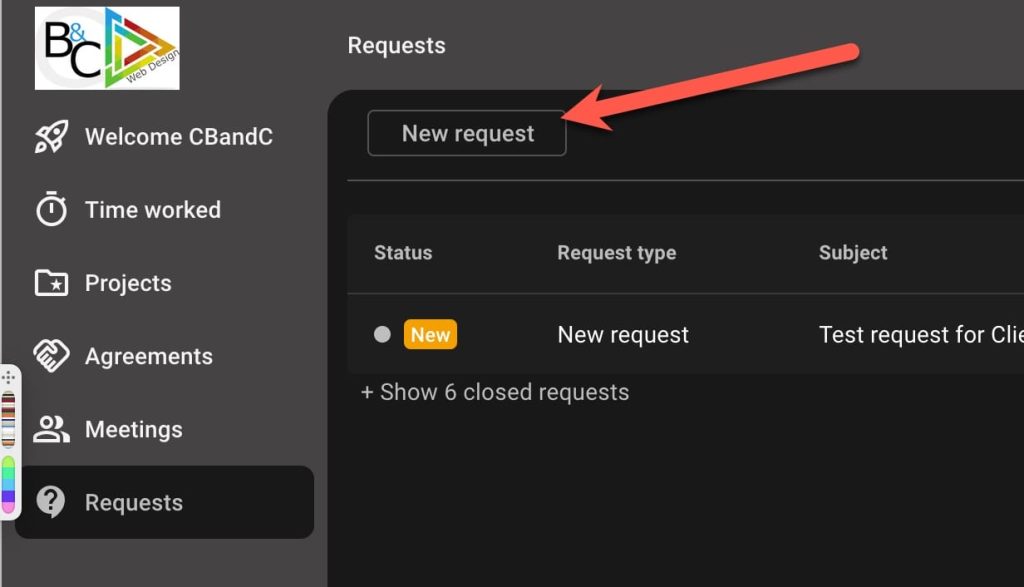
2. Click the “New request” button and you will be taken to the following screen:
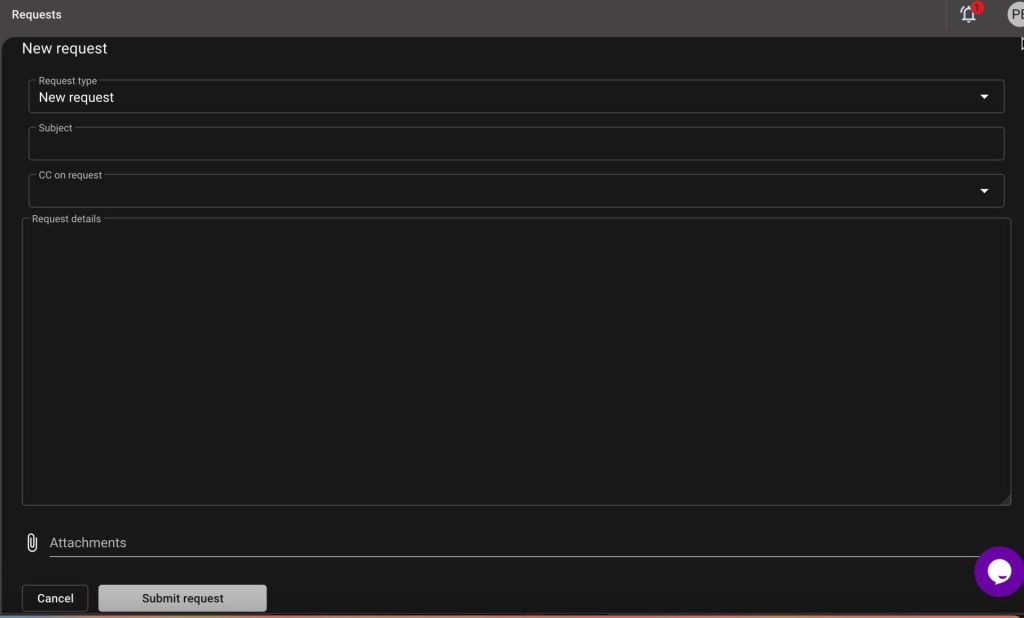
3. Choose your “Request type” from the dropdown menu. If there is no type that matches your needs, please just use the “General Question” type.
4. Add the subject of your request in the “Subject” field – keep it short!
5. If other Members of your Team have access to the portal and requests, you can add them in the “CC on request” dropdown. If you need help setting up Team Member access, please let me know.
6. Add the “Request details” – be as specific as possible about your requirements.
Please do not request a call to discuss your project using this system – you will use the “Meetings” item in the Client Portal to request a support call.
7. Ignore “Attachments” – you will use “File Uploads” to provide any necessary items for the request.
8. Click the “Submit request” button.
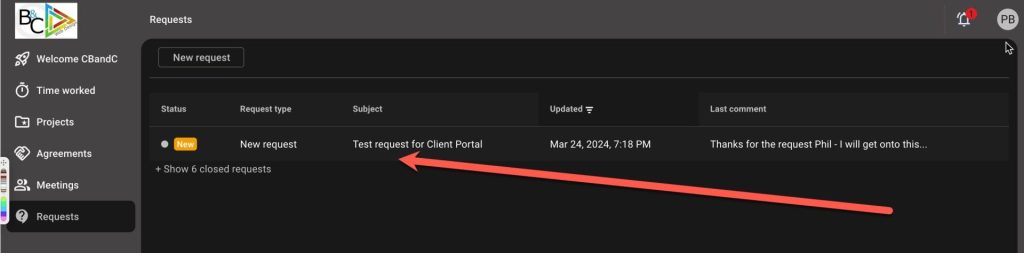
Once your request has been created via this method, it will appear on your “Requests” screen:
You can click individual “Requests” to add additional information, ask and answer questions, and track our chat about the specific request.


