Track details of our conversations #
From the “Requests” screen, you can:
- check the history of your Support Requests;
- see the status of your Support Requests;
- access details of individual Support Requests;
- ask questions and provide answers in a “threaded” chat format for each request;
- check the details of any previously “closed” support tickets (just click the link that says “+ Show x closed requests”
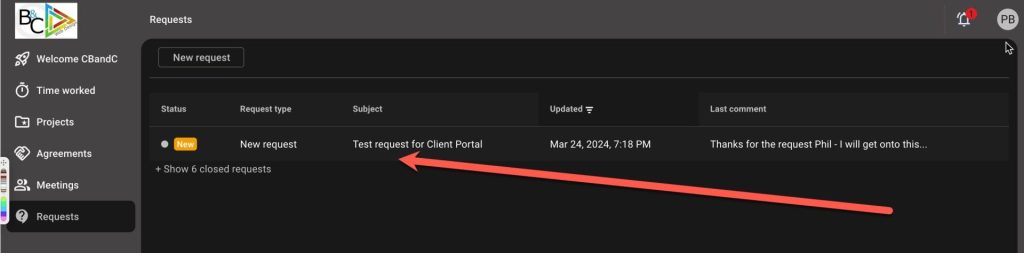
Simply click the request you wish to examine – you’ll be taken to the “threaded chat” view of the support ticket:
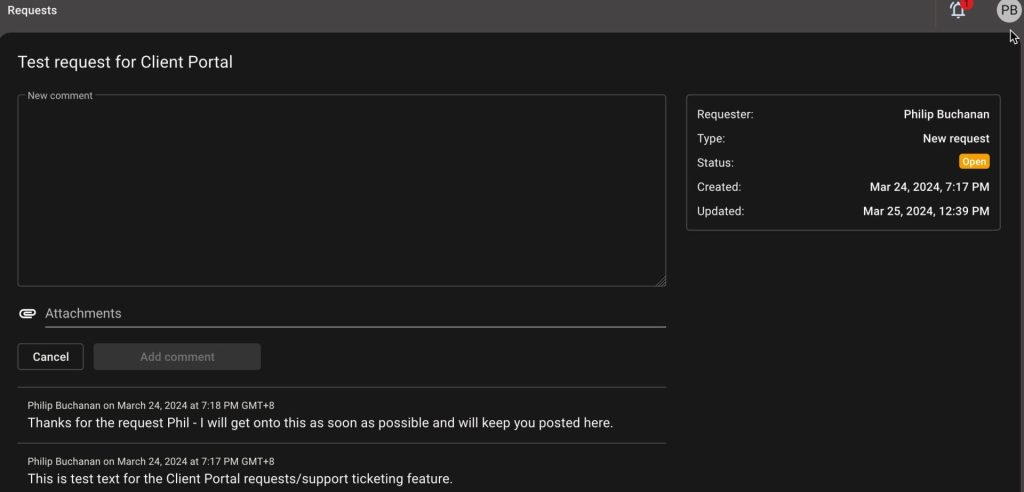
On this screen you will see:
- the title of your original request;
- a field for adding a new comment or further info;
- an “Attachments” field (please do not use this to add files – you will use the “File Uploads” feature of the portal);
- a “Cancel” and “Add comment” button (the latter will only become available once you have typed something into the “New comment field above it!);
- the “threaded” chat with details of our conversation about the current request
Details on the right hand side of this screen:
- the name of the person who made the initial Support Request;
- the type of request (this is selected when you make the initial Support Request);
- the status of your request;
- the date/time the request was created;
- the date/time the status was updated or further information added
Add a new comment #
If you wish to add further information or respond to a question asked by me within the thread, you can do so by typing in the “new comment” field and clicking the “Add comment” button. This automatically generates associated notifications for the Support Request and adds the info the chat thread.


