Video Tutorial #
How to Login to your website #
- Your Dashboard is visible once you log in to the backend of your website using the provided credentials. The website backend is accessed from a secured URL that is specific to your site and is altered from the generic WordPress wp-admin page for security reasons.
- Your WordPress Admin is also protected by a captcha solution and you may be asked to both accept the terms of the captcha solution, then solve some “puzzles” to prove you are not a bot:
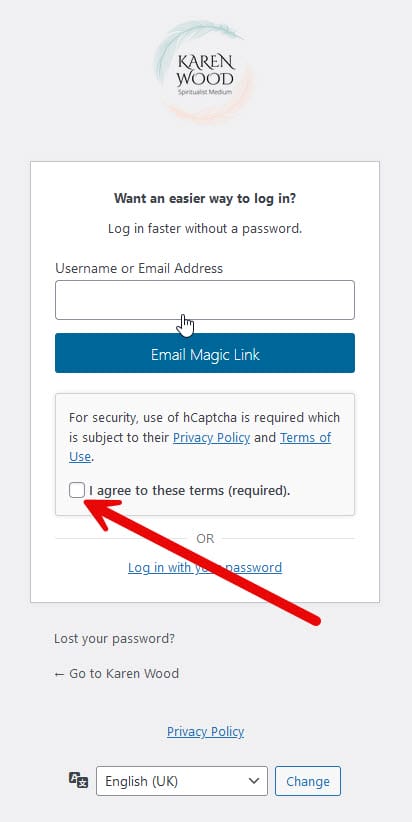
The available methods for logging in are (gallery of various screens available below):
- Email Magic Link – when using this method, you’ll receive a “Magic Link” to your registered email
- Username and Password – use the credentials that have been set up for your Admin access
Login Methods Gallery #
The selected folder has no items.
Your Dashboard #
Once you have used one of the available methods and successfully logged in, you will see your dashboard (below):
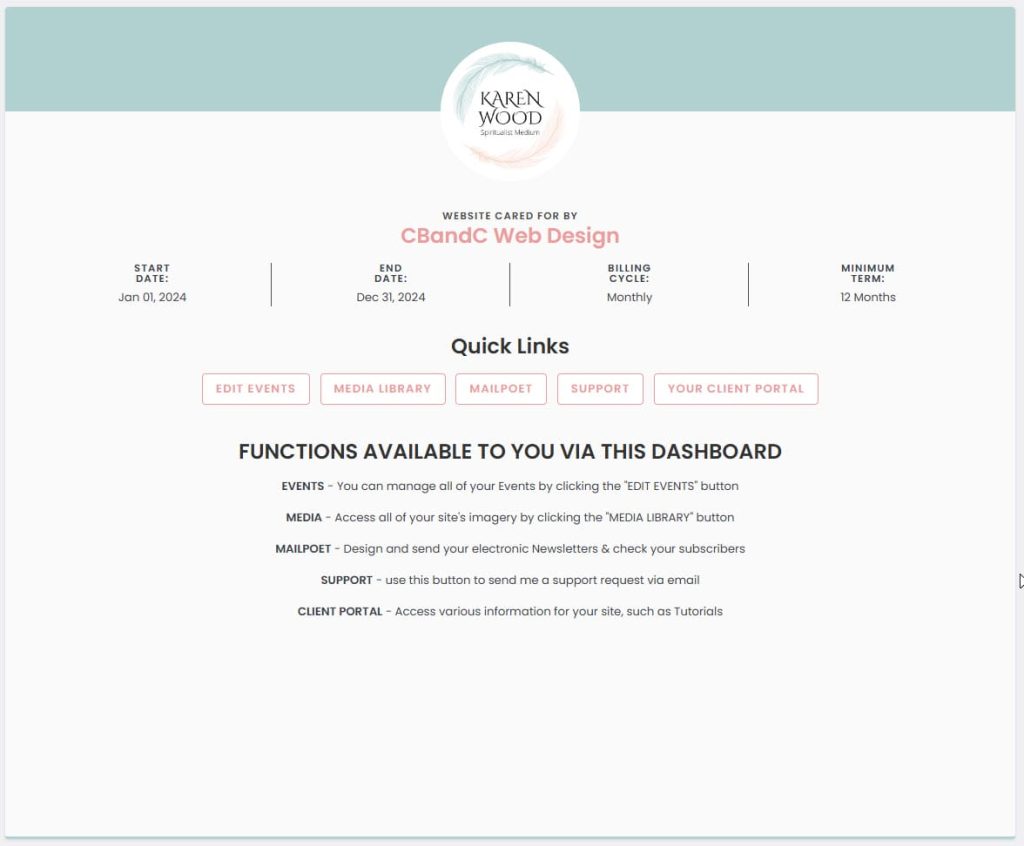
Your Website Admin Dashboard includes various information about your site, as well as methods to access its editable areas. It displays:
- Information about your Care Plan (Start & End Dates, Billing Cycle & Term)
- Quick Links to Editable Areas:
- Events – this is where you can manage all of your events (create, edit & delete)
- Media Library – imagery and file attachments
- Mailpoet – Newsletter app. for up to 5,000 subscribers
- Client Portal – link to your CBandC Web Design Client Portal (login required)
- Support – link to the Requests System on your Client Portal (login required)
Dashboard Gallery #
The selected folder has no items.


