*NOTE: Before you start this process in your WordPress User Account, you will need to ensure you have a valid TOTP app either on your phone, tablet, laptop or desktop. A list of some apps can be found HERE, along with lengthy instructions on set up.
Some of the more commonly used apps are:
- Google Authenticator
- Sophos Mobile Security
- FreeOTP Authenticator
- 1Password (mobile and desktop versions) See: 1Password help
- LastPass Authenticator
- Microsoft Authenticator
- Authy 2-Factor Authentication
- Any other authenticator app that supports Time-Based One-Time Passwords (TOTP)
I highly recommend paying for a subscription to 1Password, which can be used on all your devices.
SETTING UP 2FA ON YOUR USER ACCOUNT #
Step One – Accessing the setup screens #
After logging into your WordPress website for the first time after the implementation of the new 2FA requirements, you have two methods to access the setup screen-
By clicking the “Configure 2FA” link on this message which will display at the top of your WordPress dashboard:

By accessing your User Profile with the menu item at top right on the WordPress screen and clicking the “Edit Profile” link:

Step Two – Activating 2FA #
If you clicked the “Configure 2FA” link, you will be taken straight to the page displayed in Step Three.
If you clicked the “Edit Profile” link, you will be taken to your profile screen; scroll down and you will see this section towards the bottom of the page:
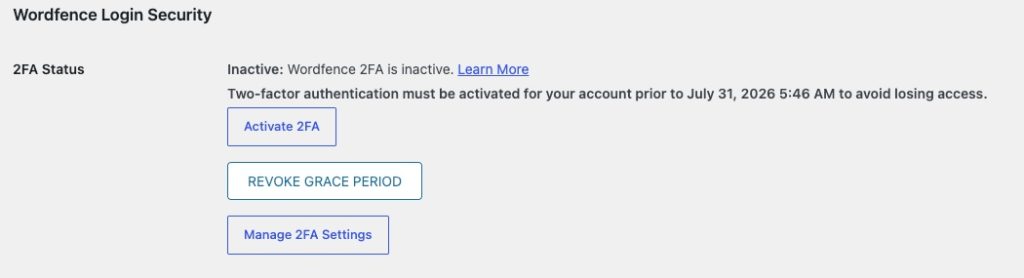
Click the “activate 2FA” button.
Step Three – Identifying the 2FA app setup screens #
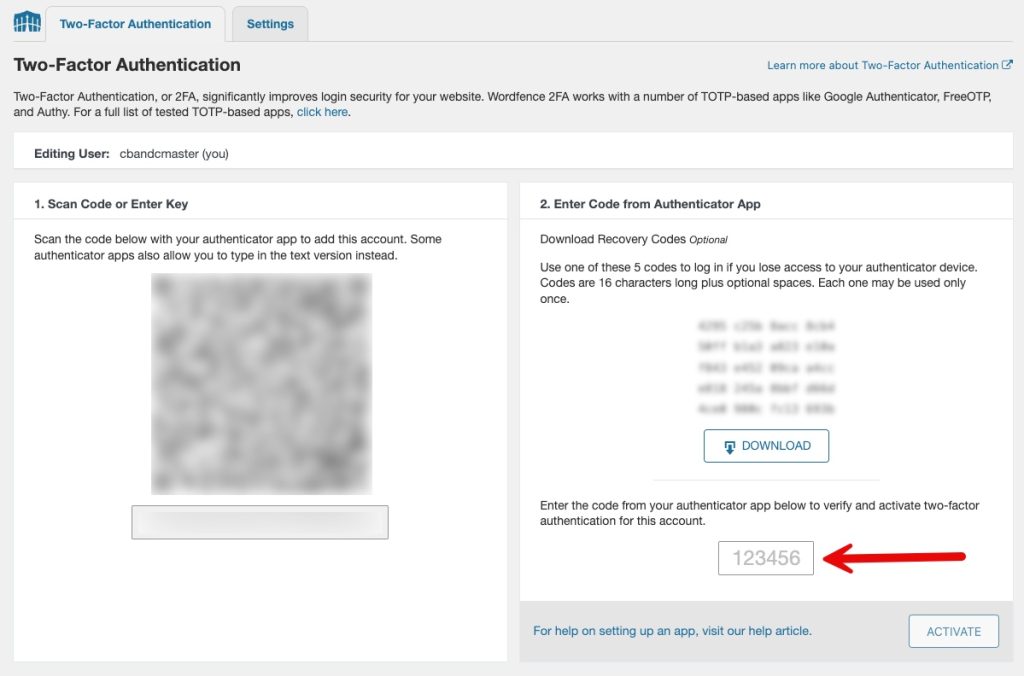
You should now see this screen:
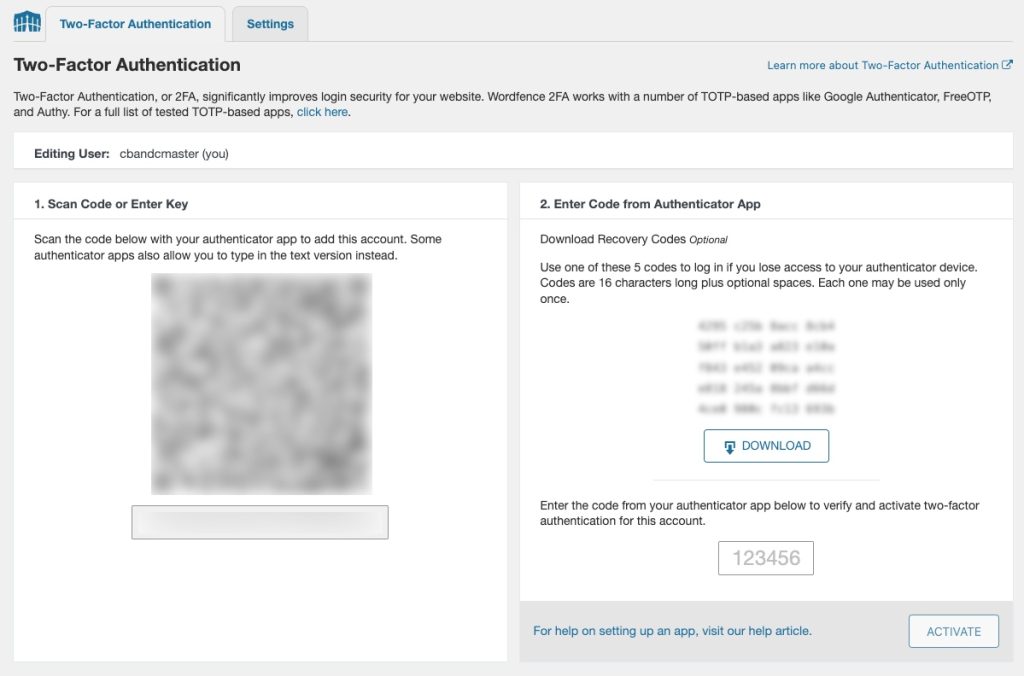
On the left you will see a QR Code and a text string – you can use either of these to setup your 2FA TOTP App.
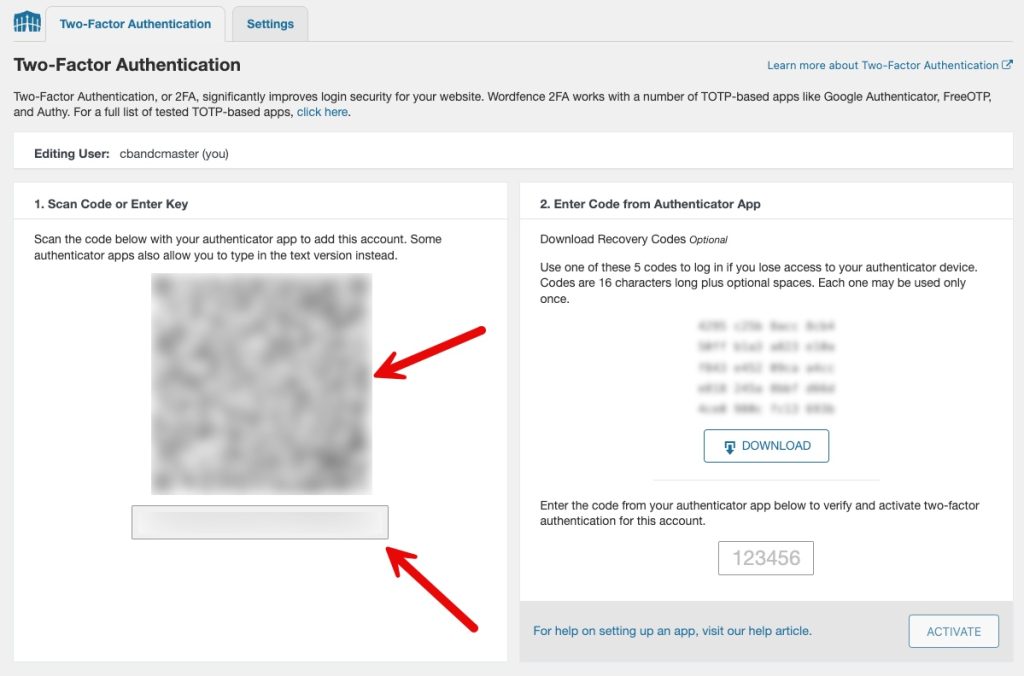
On the right you will see a set of Recovery Codes with a “Download” button underneath:
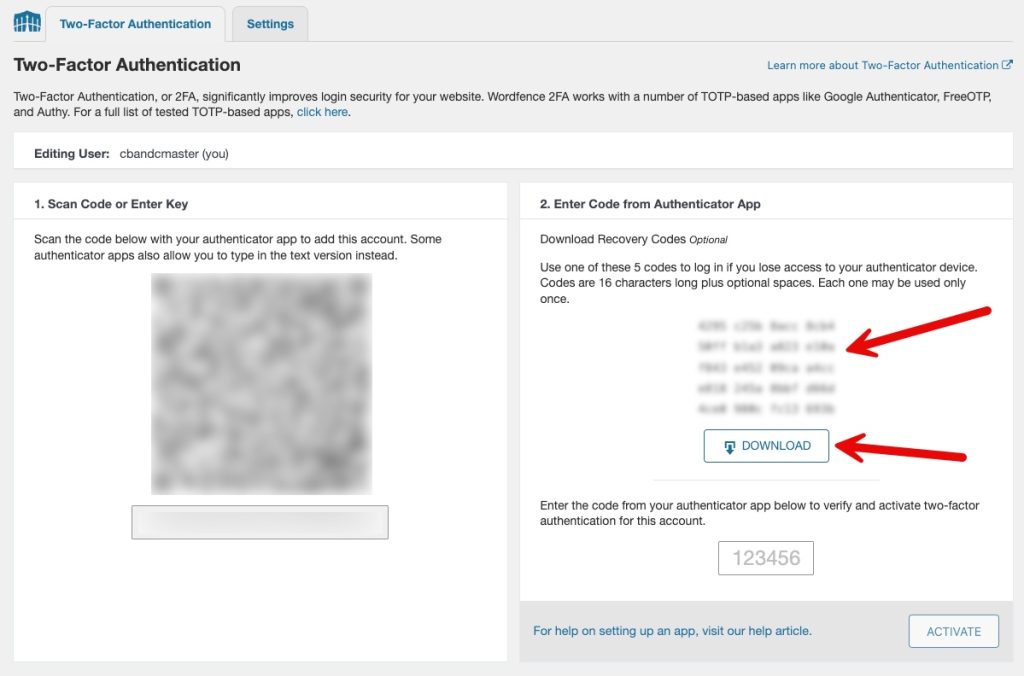
Ensure you download the Recovery Codes and keep them in a safe place. You will need these in order to login should you ever lose access to your 2FA TOTP App.
Underneath the Recovery Codes is the field you will use to enter the very first 2FA code from your chosen app:
Step Four – 2FA Setup using your chosen app #
Please note that I cannot provide explicit instructions for each app, due to the number of apps available. In this example I will use Google Authenticator, but most apps will work in very similar ways. Please do a search on the specific app you have chosen for instructions on how to set up 2FA codes for a website.
Access the authenticator app on your device:
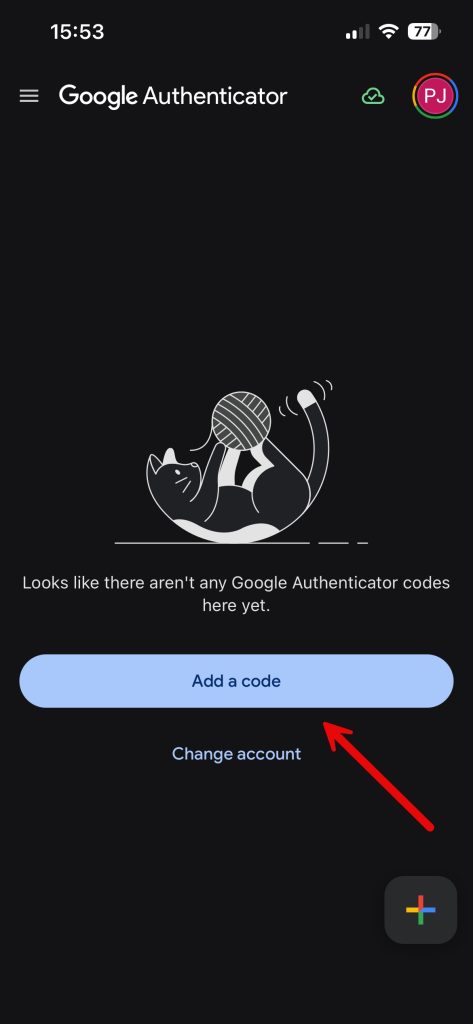
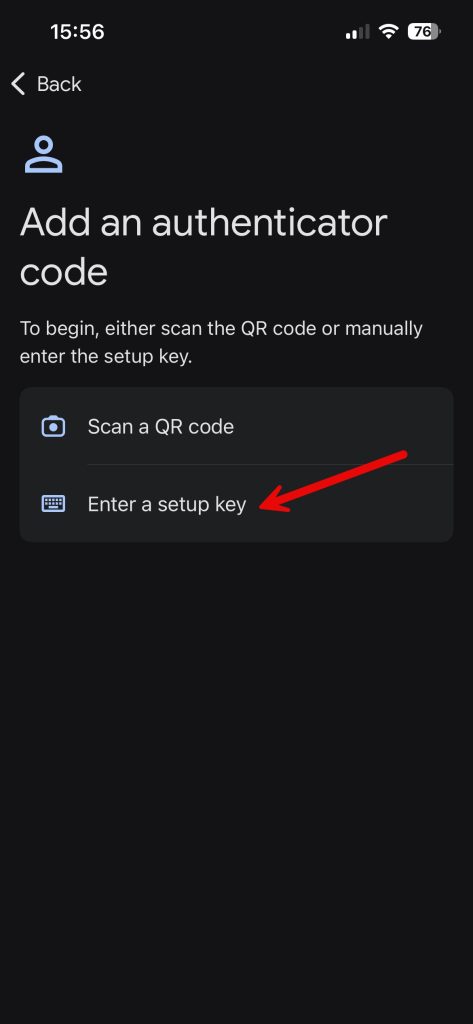
Click the “Add a code” button.
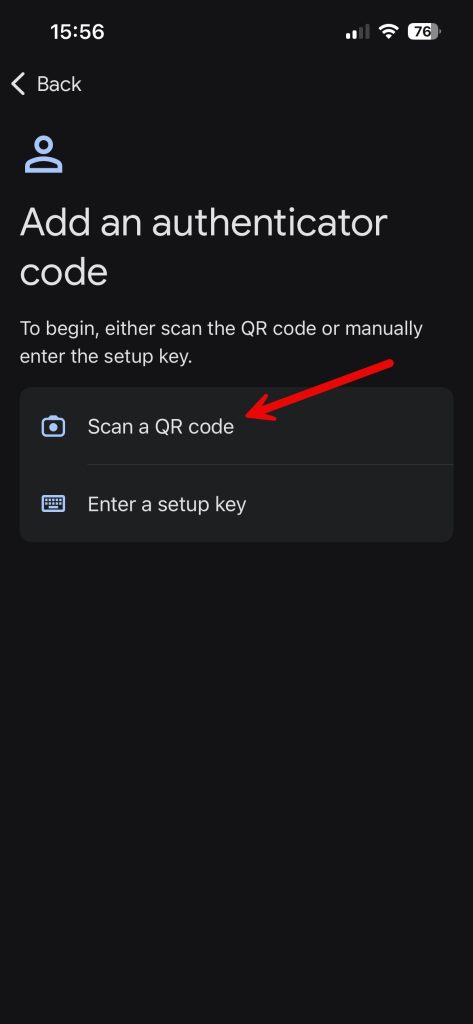
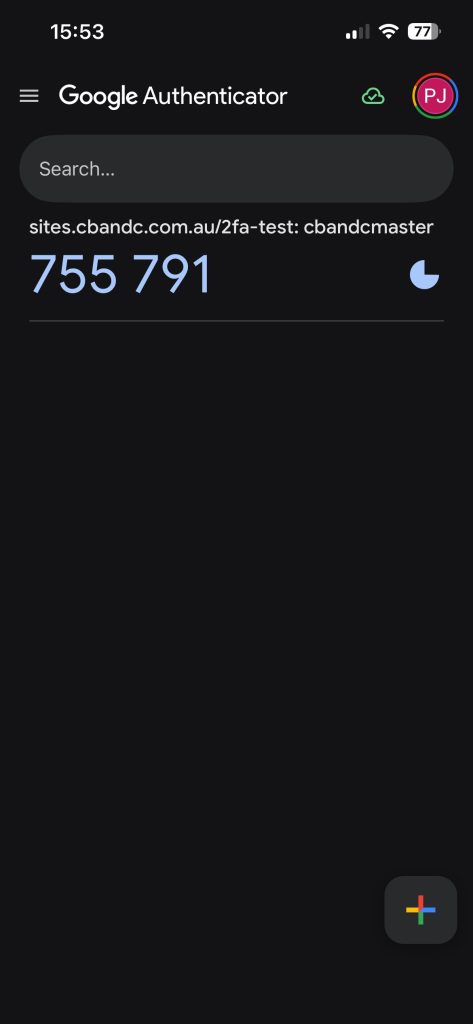
If you click the “Scan a QR code” your device’s camera will activate – you will need to position the camera over the QR code presented in Step Three. Your app should then immediately show the first 2FA code:
If you use the “Enter a setup key” method, you will need to copy the text string under the QR Code and enter it into the next screen on your device:
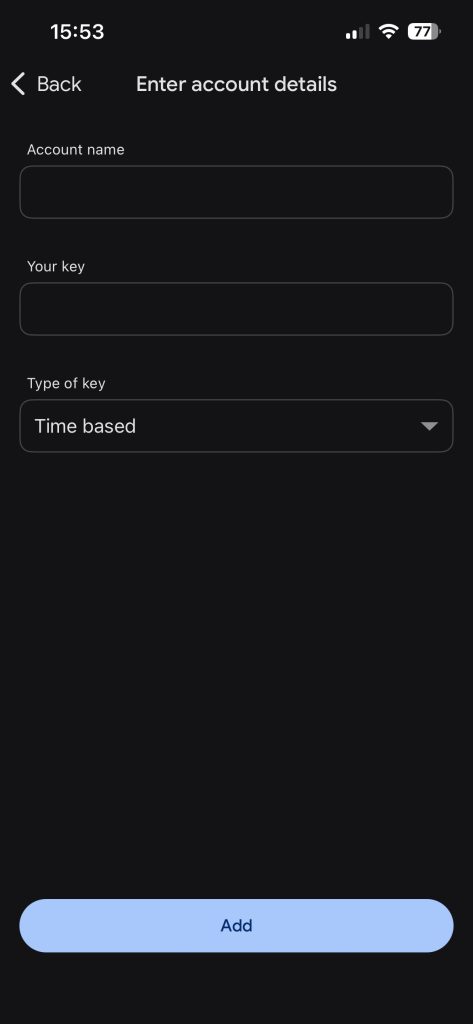
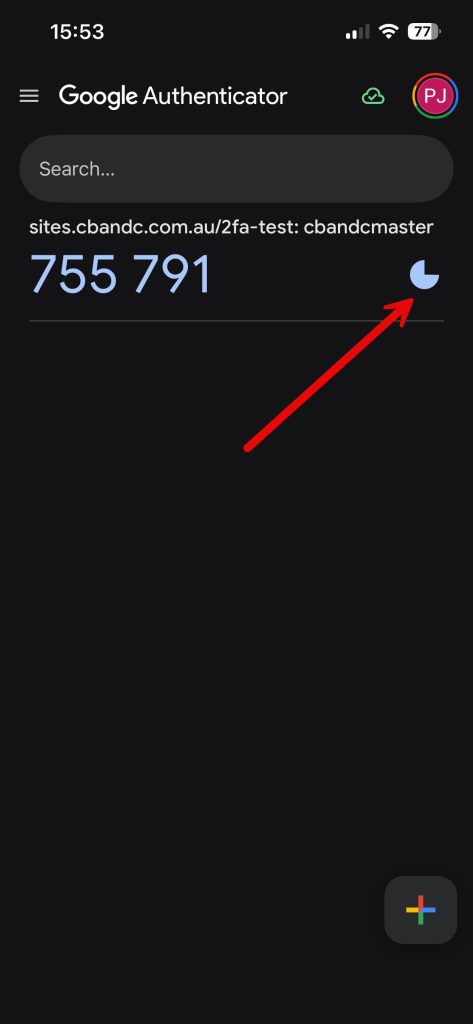
When you click “Add” you will also be presented with a code to add into the activation field – with either method, please type the code displayed in the indicated field. Note that the code will refresh every 30-60 seconds depending on which app you are using.
Note that in Google Authenticator and most other TOTP apps, there will be a timer that shows you how long before a new rolling code is displayed.
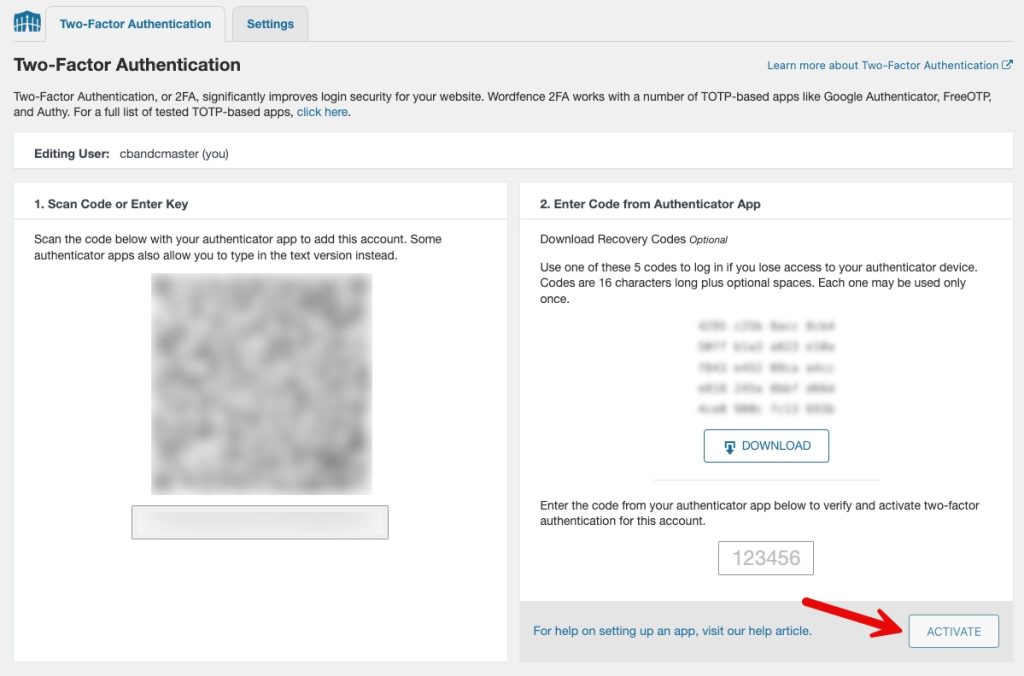
Once you have typed your code into the field, click the “ACTIVATE” button.
CONGRATULATIONS – your 2FA code app is now activated to allow login to your website. You will be asked to provide a 2FA code after you enter your login credentials.
If you have any questions about this method, or your specific 2FA TOTP app, please get in touch via your Client Portal Request System.


