Video Tutorial #
Overview #
The Homepage Gallery entitled “See For Yourself” is a gallery of images sourced by SDCB of animals who have boarded at the facility. As described elsewhere in the “Gallery Uploads” tutorial, this gallery displays images as soon as they are uploaded via the frontend website form.
The gallery is now set up to only load the first 8 images when a user visits the homepage, and has a “Load More” button that allows people to see further images from the gallery, loading 8 at a time until the limit of the total number of images is reached.
To remove images from this gallery, you should follow this procedure:
1. Login to the website back end #
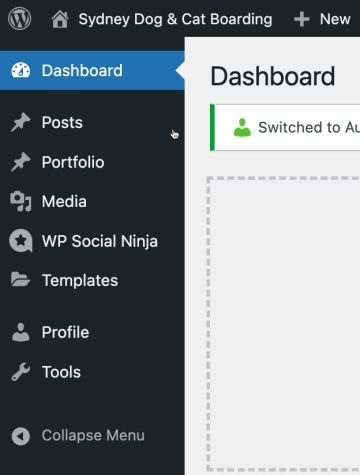
Using your credentials, log in to the website backend. You will see the Dashboard page of the WordPress backend applicable to your user level. Similarly, when you are in subsequent screens, your viewable items will vary based on your security access level. For instance, “Contributor” users will see only the “Gallery Upload” and their own folder within the Media Library.
2. Media Menu #
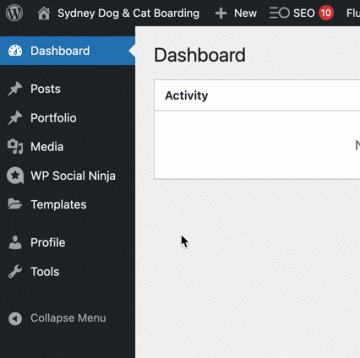
You can either click the “Media” menu item or, hover over it and click “Library” in the contextual menu which appears.
3. Media Library Screen #
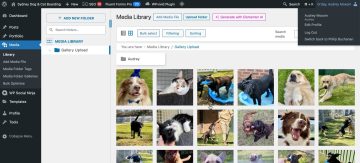
Once the Media Library screen loads, you will see something similar to the image below:
4. Media Library Views and Other Controls #
There are a couple of different ways to view the Media Library content, using the List and Grid icons at the top left next to the “Bulk Select” button:
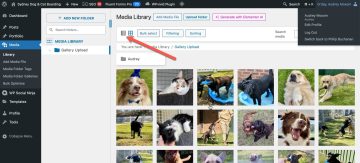
The “List” icon (left) looks like little bullet points and will show your media in a list format when clicked. The “Grid” icon (right) looks like a series of 4 small squares and will show your media in the grid format as displayed in the screenshot above.
Bulk Select #
The “Bulk Select” button, when clicked, will alter the media library to display the following:
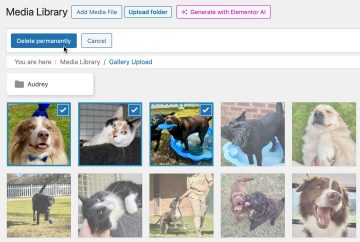
You can then select multiple images by clicking them and you can delete them using the “Delete permanently”. You can also move media using this feature, by clicking the images and dragging them to your folder (in this case your folder is named “Audrey” and is a sub-folder of “Gallery Upload”). In this way you can remove images from the online gallery without deleting them from the website’s backend. They will stay in your folder until you wish to re-use them.
FURTHER INFO #
More information about the standard workings of the WordPress Media Library can be found by searching Google.


