This KnowledgeHub article will teach you how to instantly add images to your website’s online gallery.
NOTE: All images can be clicked to open in a lightbox.
STEP 1 – LOGGING IN #
In your browser go to: https://sydneydogandcatboarding.com.au/gallery-login/ where you will be presented with the following screen:
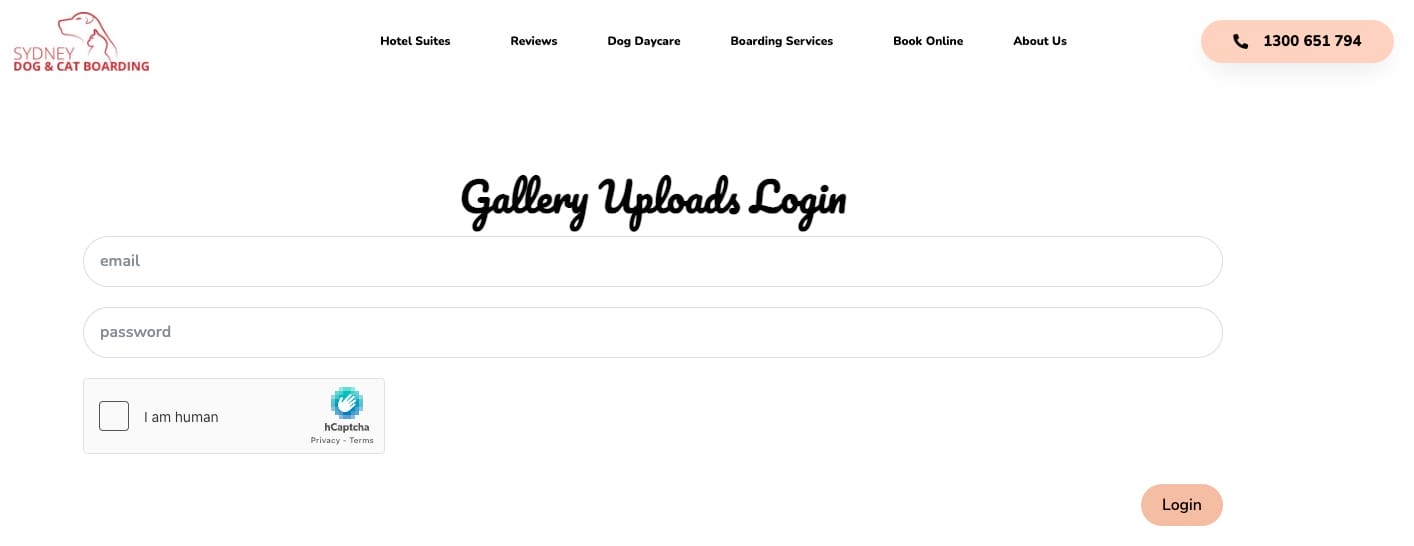
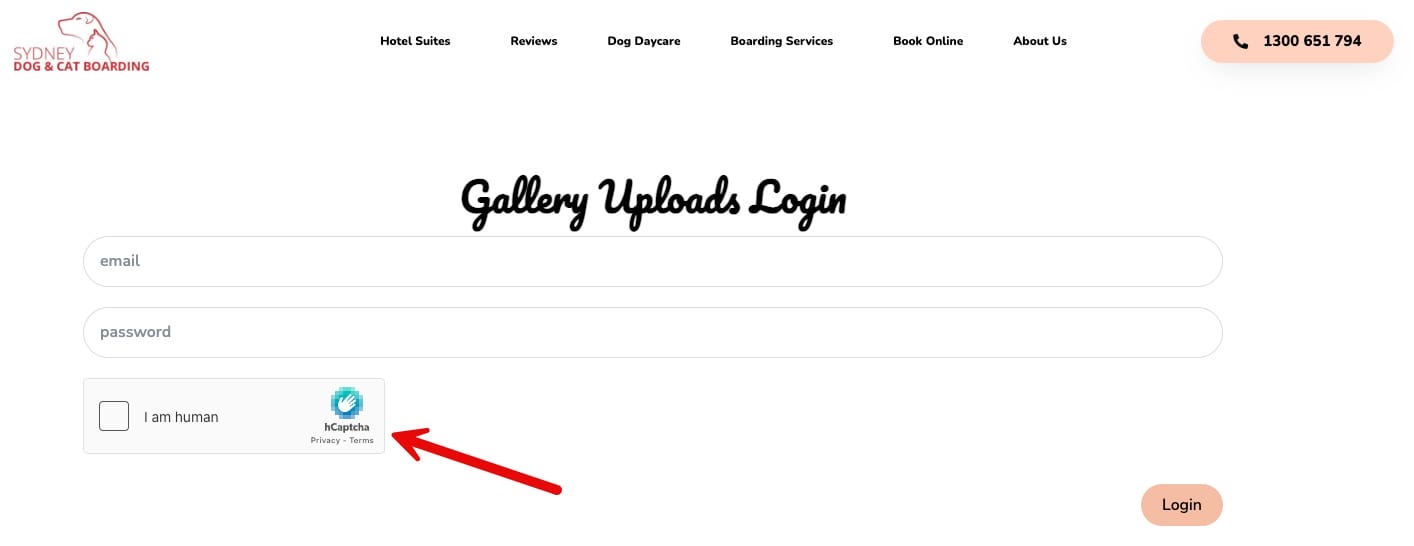
You will need to complete the hcaptcha challenge in order to be able to login – this is an additional security feature to help prevent bots submitting the login form:
If an external user or bot happens to find the uploads screen without first being logged in, they will be presented with the following screen:
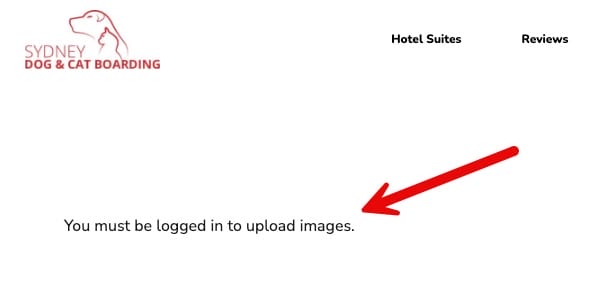
All pages relating to the gallery upload system are set to “no-index” for search engines, so this should prevent a person or bot from finding the page and, prevent any unauthorised uploading of images.
STEP 2 – UPLOAD PAGE #
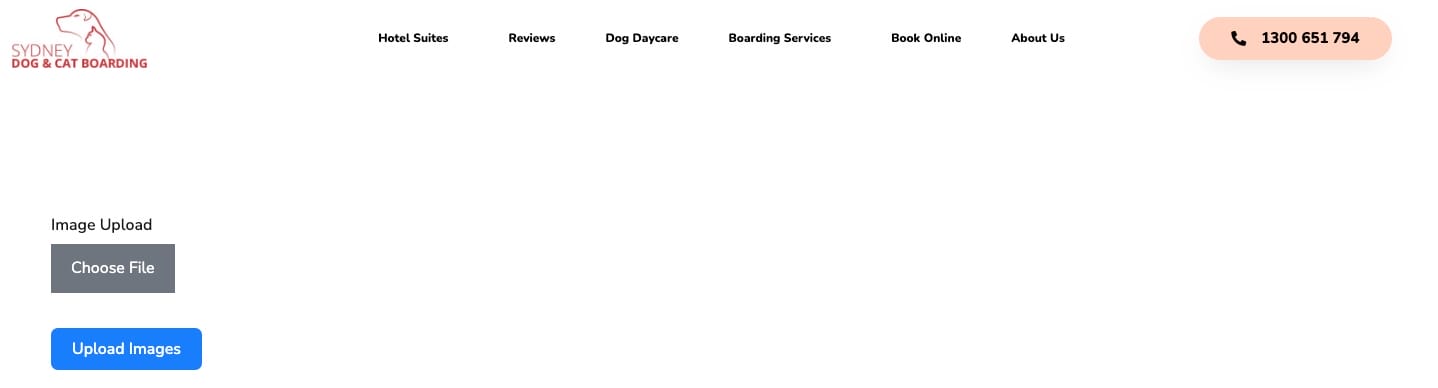
Once logged in, you will be presented with this screen:
STEP 3 – UPLOADING IMAGE/S #
Click the “Choose File” button to access the images you would like to upload to the gallery – you can upload multiple files at a time by choosing them all at once from the location on your computer. Once you have selected the images click the “Open” button (both Windows and Mac) to add the images to the page.
PLEASE NOTE: The gallery will only accept images – it is not suitable for video uploads. These should be added to the SDCB Instagram feed.
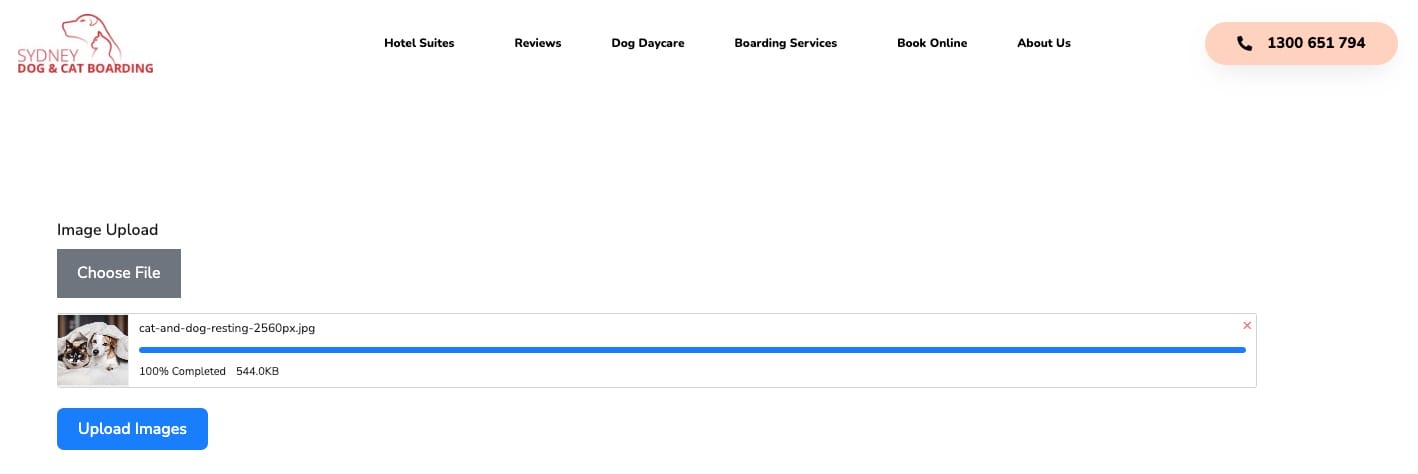
Once you have “opened” the required image/s, the site screen will look something like this If there are multiple images, they will all be listed here:
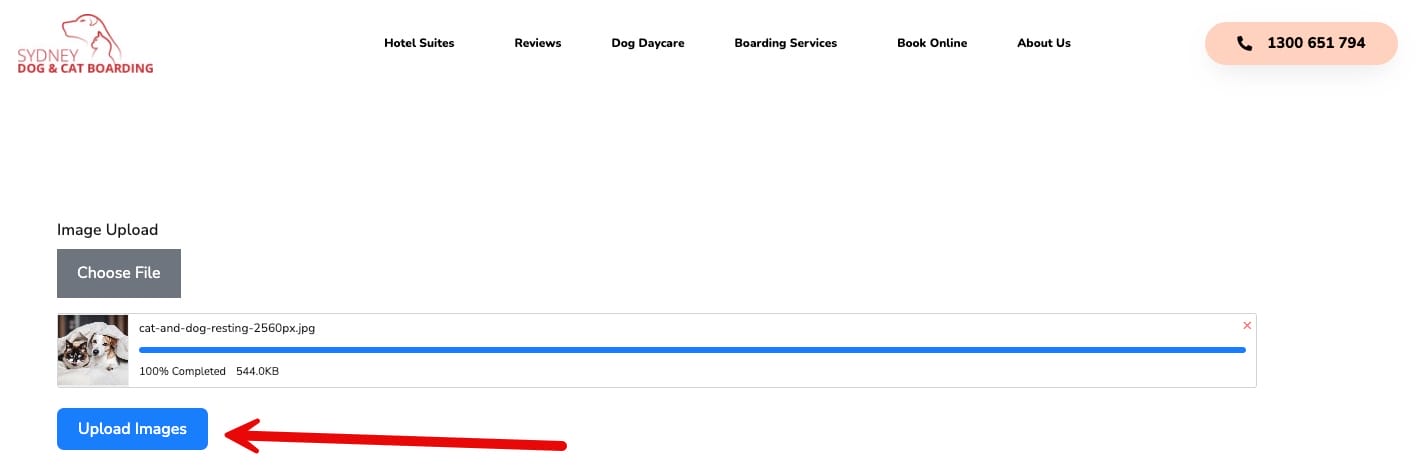
Click the “Upload Images” button to complete the upload process:
STEP 4 – REDIRECT & LOGGING OUT #
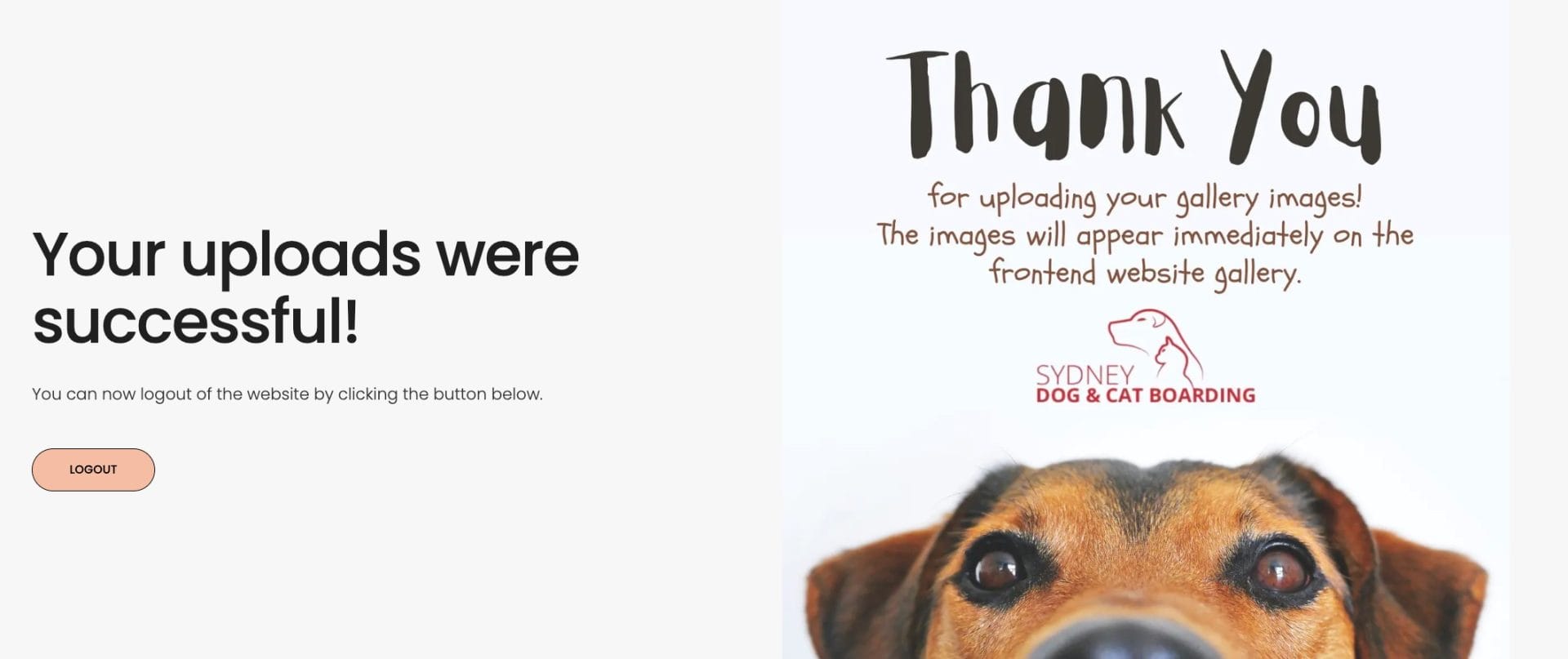
Once you have submitted your uploads and they have completed successfully, you will be redirected to the following page, where you can now log out of the system: